Video:
Typically, a project is imported from your financial system. You can also create a new project in the Estimate tab.
Follow these steps to create a project:
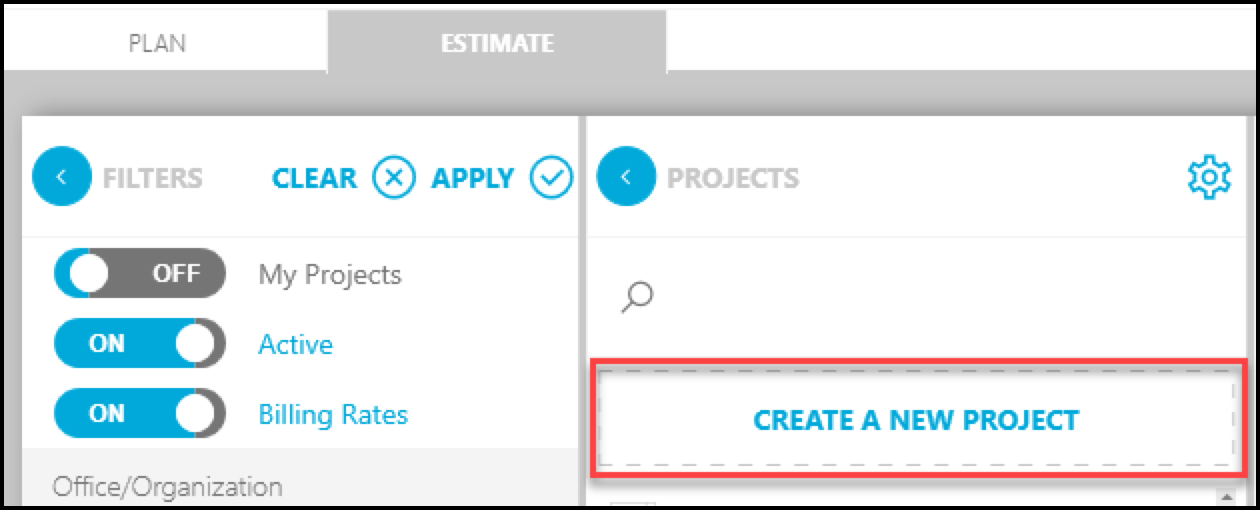
- On the Estimate tab, click the Create a New Project button.
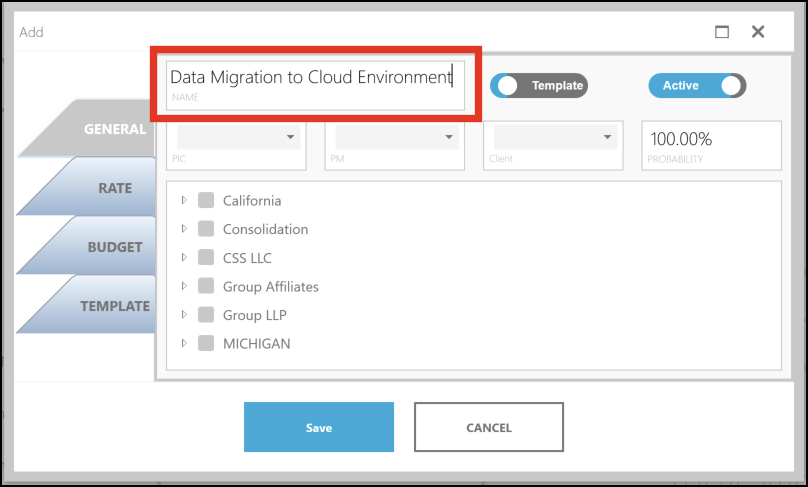
- In the popup window, complete the following fields:
- Enter a name for the project. NOTE: This is the only mandatory field. You can save a project with only a name for the project.
- Click the Active toggle off if you want to make this project inactive.
- Select the PIC (Principle in Charge) and PM (Project Manager)from drop-down menu.
- Select the Client the project is for, from the drop-down list.
- Use the small arrows to expand folder and choose the office to which the project has been assigned.
- Click the Rate tab on the left and choose the method you will use for calculating the rates.
- On the Budget tab, enter the fees, expenses, contingency and consultant payments for the project.
- Click the Save button to save your changes and create a new project.