Project Managers are responsible for the overall project delivery and project profitability (for example: Deal Castle Project). The role of a project manager includes planning and reporting.
This article explains the common tasks of a project manager in the Visual Planning application.
Viewing staffing on all of my projects
The Project Staffing tab displays named resource information and breaks out resource assignments by week across all projects (regular, overhead and promotional) as well as any opportunities that have been planned.
Staff assignments and utilization
You can find out what project your staff is assigned to, along with roles, utilization, and start and end dates using the Assignments tab under Manage.
Follow these steps to view assignments for your staff:
- On Manage tab, click Assignments.
- On the Filter pane, choose a value for Number of Weeks shown and toggle My Projects to ON.
If you also toggle Show Role to ON, it will also display the roles. - Click Apply to apply your filter changes.
After a few moments, the Employee list will display results that match your filter criteria.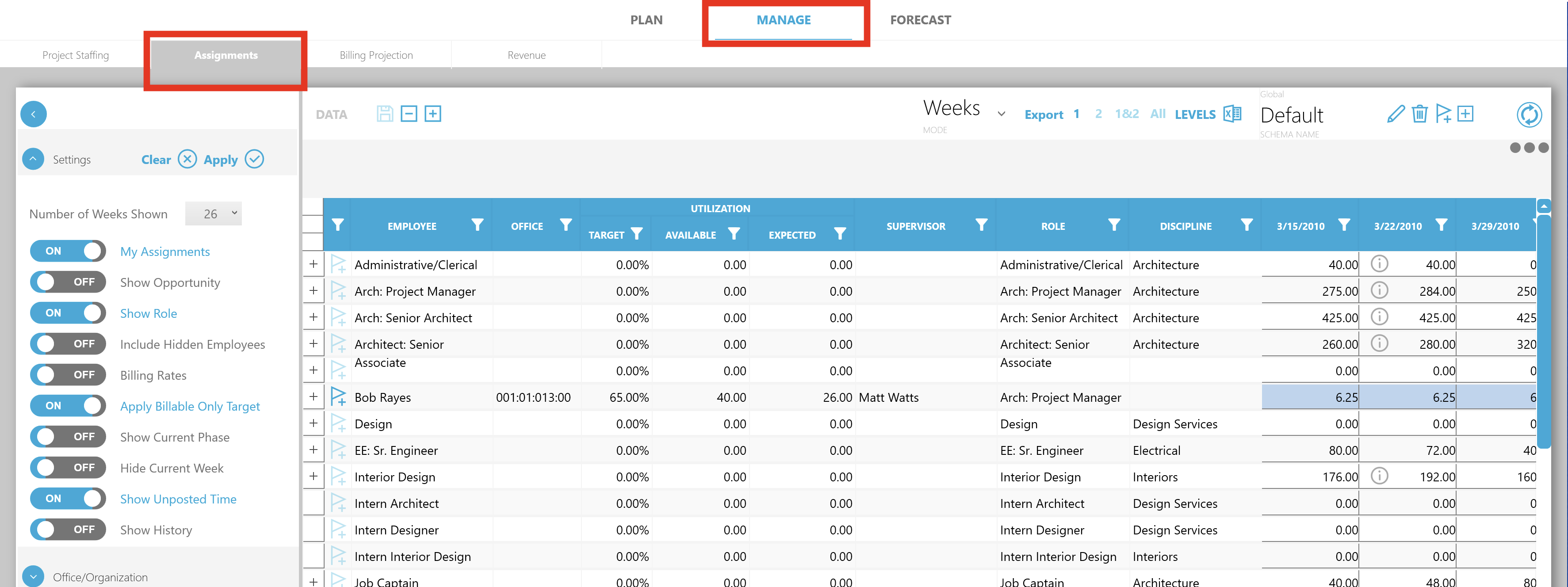
Comparing project budget with actuals
There are two ways you can find out if your project is on budget, depending on the number of projects.
To find out if multiple projects are on budget:
- On Forecasts tab, click Projects.
- On the Filter pane, toggle My Projects to ON and click Apply to view only your projects in the Projects list.
- To select multiple projects, press Ctrl and click on all of the projects that you want to review. The information will appear in the main panel.
Click on the Dollars tab in the main panel to view the financials.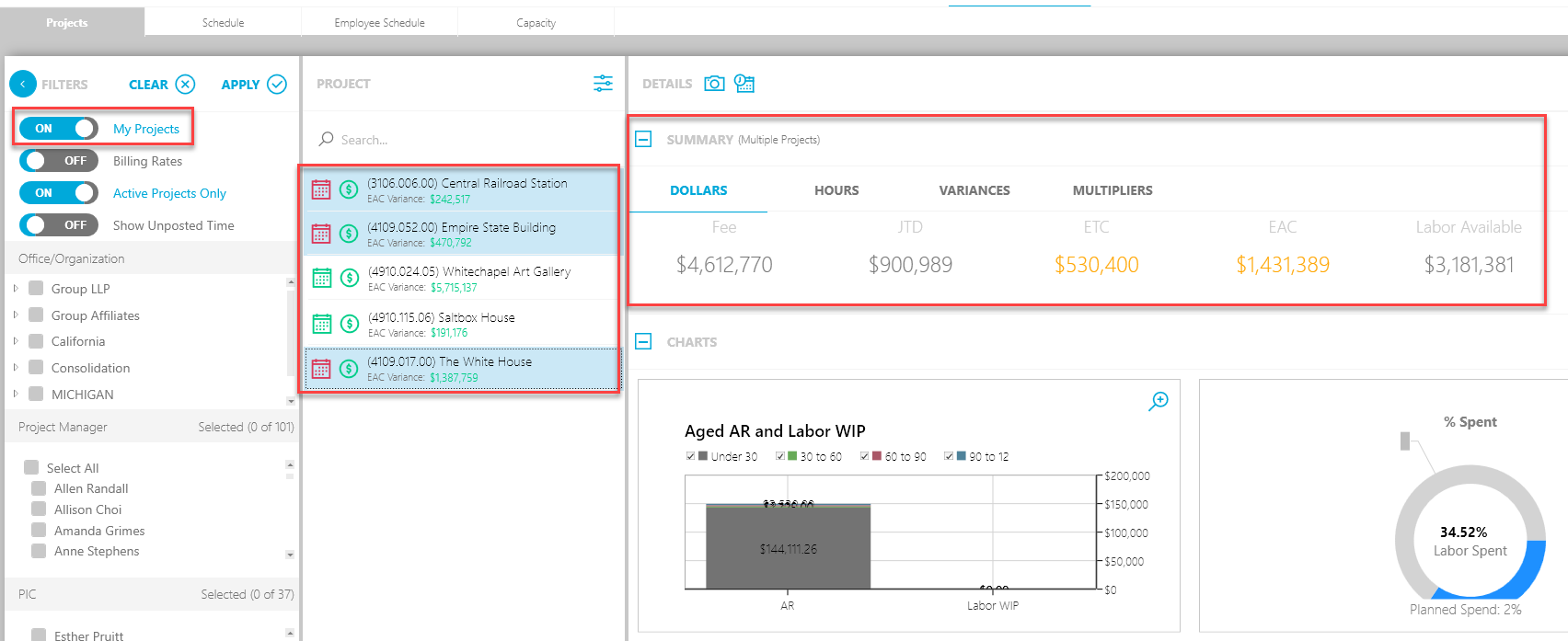
To find out if a single project is on budget:
- Click the Plan tab.
- In the Filter pane of the Plan sub-tab, toggle the My Projects option to ON and click Apply to view only your projects in the Projects list.
- Click on the project you want to review, and the information will appear in the main panel.
Click on the Dollars tab in the main panel to view the financials.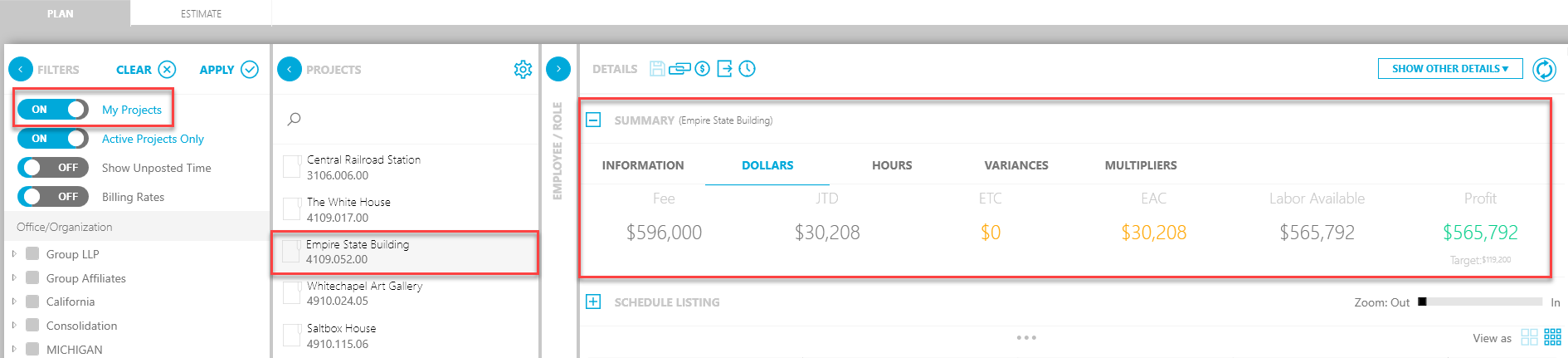
Billing projections
A common project management question is: What is the plan to bill across my projects in the next two, four, or, 12 months?
In the Visual Planning application, you can use the Billing Projection tab to view your billings for each project over a specific period.
To view your billing projections:
- On Manage tab, click the Billing Projection sub-tab.
- On the Filter pane, toggle both My Projects and Active Projects Only to ON. Click Apply and a A list of matching projects will appear in main panel.
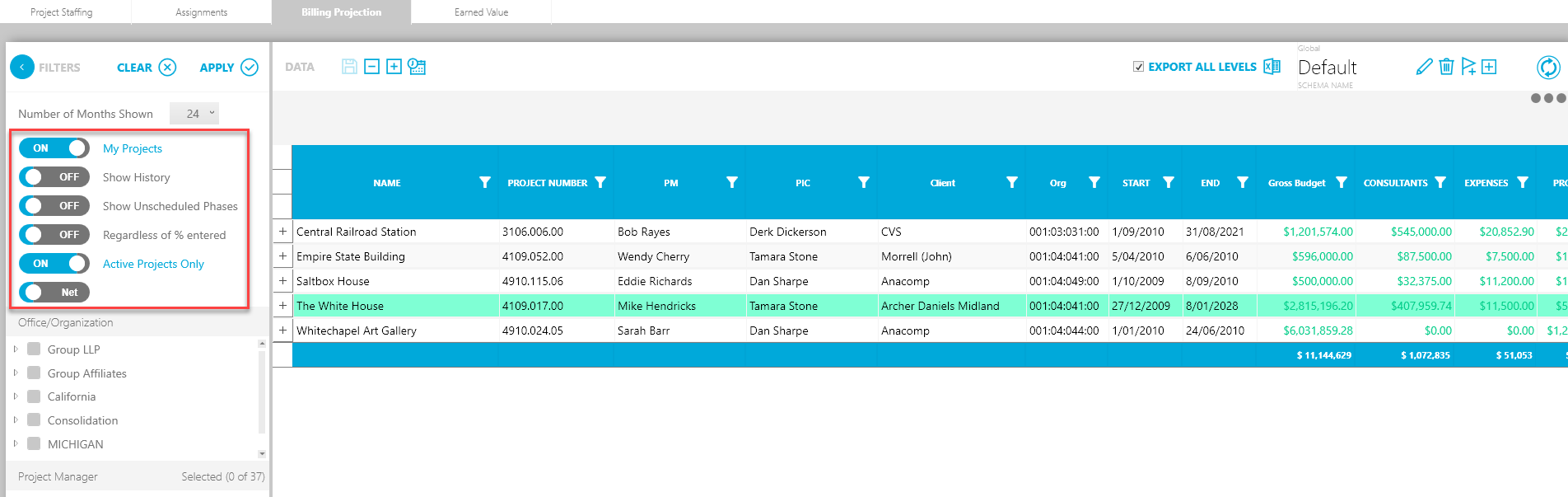
- Select a value from the Number of Months shown drop-down to view project billings for the specified period. For example, choose 24 and click Apply to refresh the main panel with project information for this period.
The main panel displays the following columns (these can be customized) that show the billing projections:
- Gross Budget - The budget (in dollars) assigned to the phase.
- Billed (Net) Not Projected - The budget not projected towards the project.
- Billed - The total amount of billing posted for an identified fee or labor (hourly) billing in the accounting system.
- Unbilled - The remaining unbilled amount for the phase.
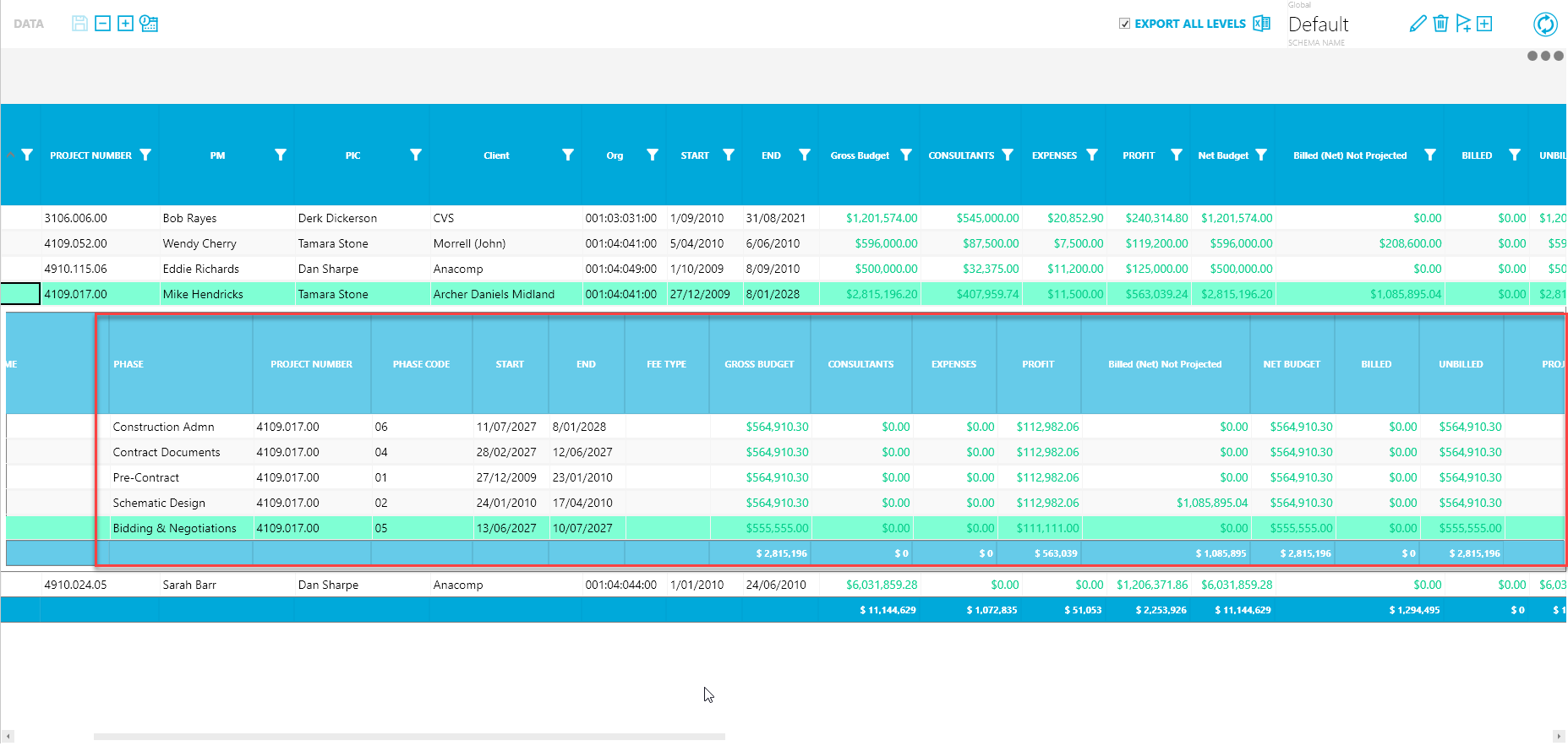
If you scroll across to the right, you'll see the billing projections over the span of the project. Monthly columns display projected billing going forward two years. The current month and next month are calculated according to the values entered in the Billing tab. The remaining periods are calculated proportionally. For example, a $100,000 fee with 10 months remaining will display $10,000 each month.
Project deliverables and milestones
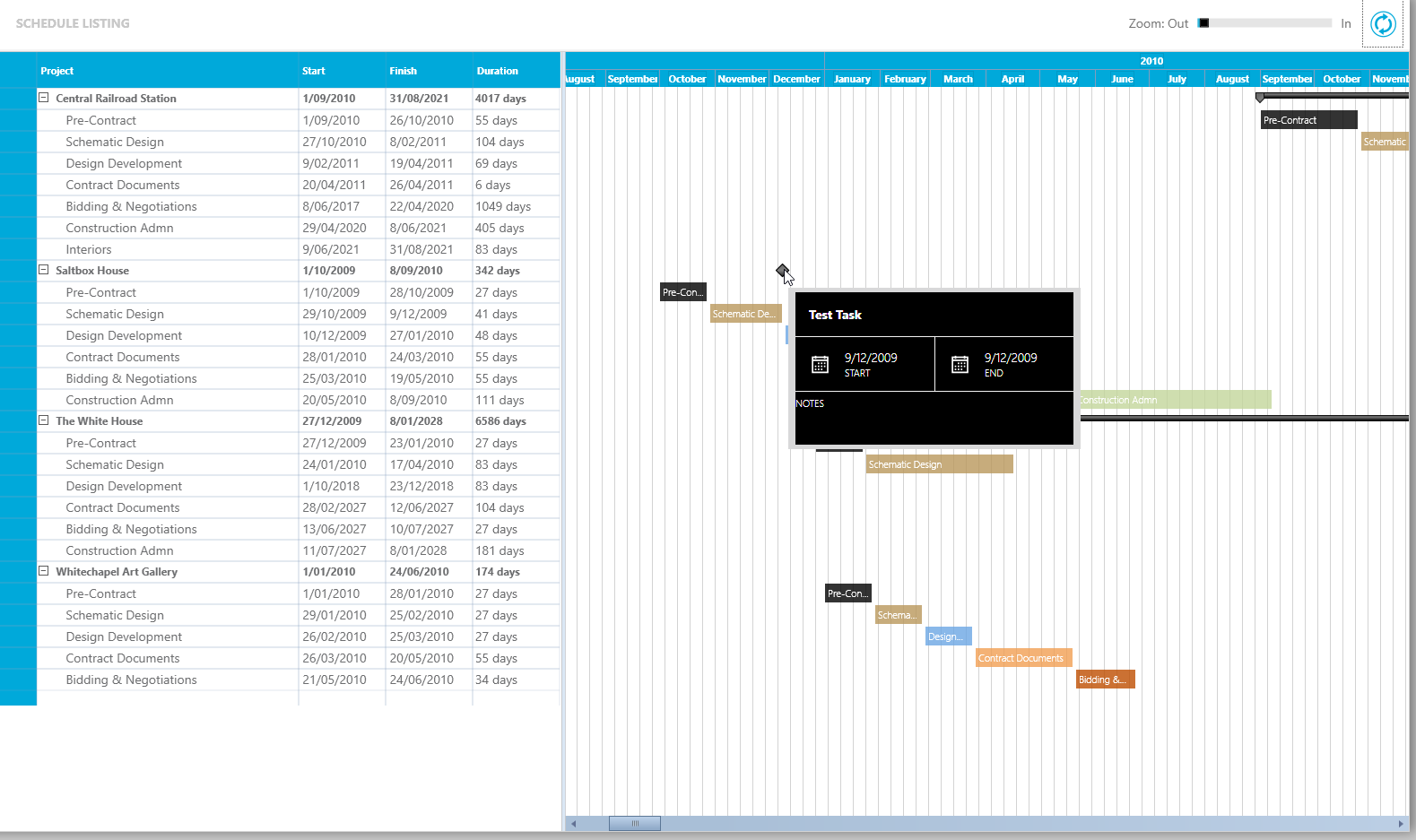
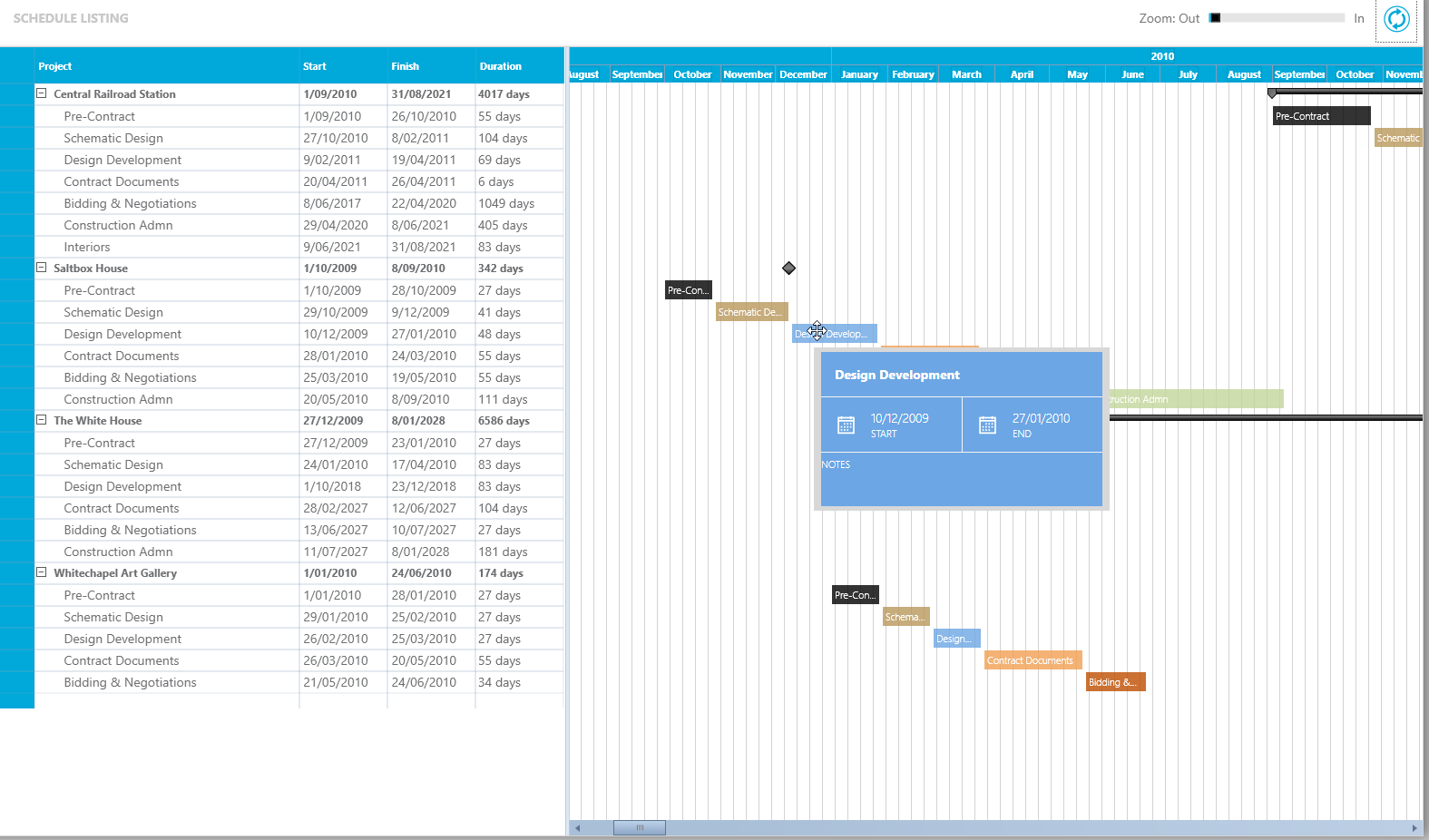
A project schedule associates dates with the key phases of project work. In the Schedule tab, you can setup a high-level project schedule that corresponds to project phases and link project phases to the billing fees of the project.
To view deliverables and milestones for your projects:
- On Forecast tab, click Schedule.
- On the Filter pane, toggle My Projects and Projects with Milestones to ON to view your project milestones.