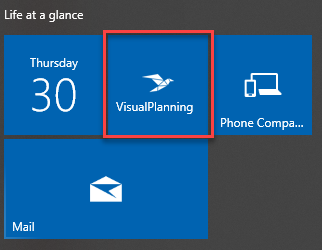
Planifi recommends adding the Visual Planning shortcut to the Windows Start menu to launch the application.
| Add the app icon to the task bar: To learn how to add an application icon to the Windows task bar, see the Microsoft article, "Pin apps and folders to the desktop or taskbar". |
Follow these steps to add the Visual Planning app to the Windows Start Bar:
- Find Visual Planning on the Start menu and right-click over that menu item to see more options.
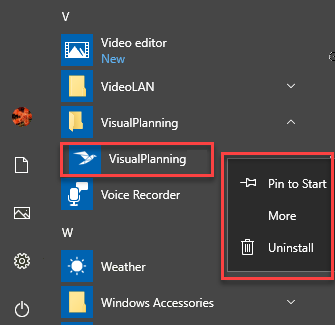
- Click Pin to Start. The Visual Planning app is now a permanent addition to the Start menu.