
You can allocate a budget to any employee that has been assigned to a phase.
Follow these simple steps:
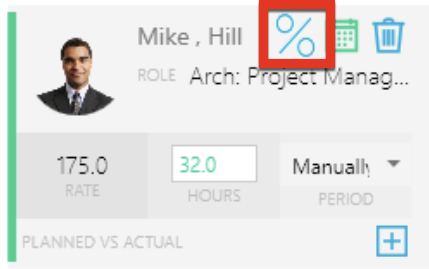
- In the Details pane of the Plan tab, find the employee whose budget you want to adjust. Click the small % button to view the budget allocation for this employee for this phase.
- In the popup window, you'll see Fee, Rate, and % of Fee fields—together with Hours.
By adjusting the value for % of the Fee, the Hours will automatically recalculate according to the employee rate. If, for example, you were to type in 25% in the example shown here, the Hours would automatically recalculate to a value of 32.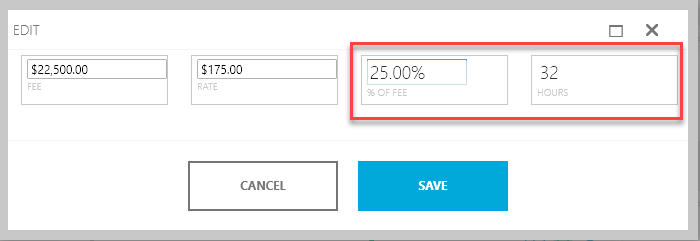
- Select Save to close the popup window and commit your changes.