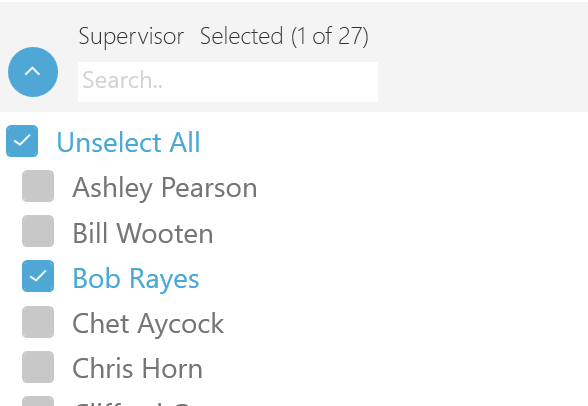
Use the Filters pane to search for specific projects. You can filter using a variety of criteria:
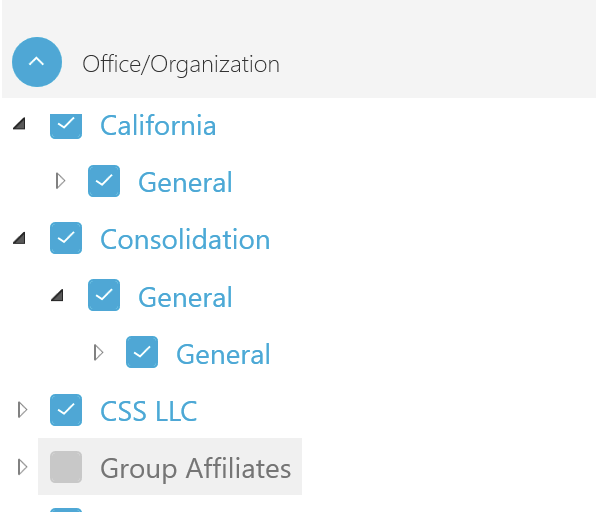
- Office/Organization - Filter by a specific office or organization, as set up in Deltek Vision.
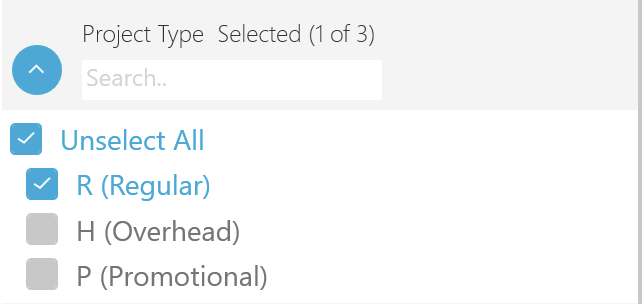
- Project Type - Select using one of these project types:
- R (Regular)
- H (Overhead) - Projects planned for vacations or holidays.
- P (Promotional)
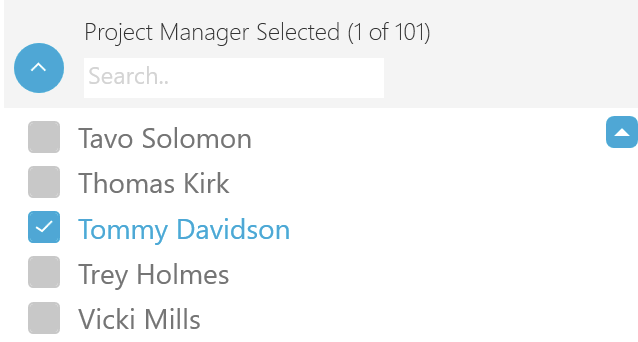
- Project Manager - Search using a specific Project Manager.
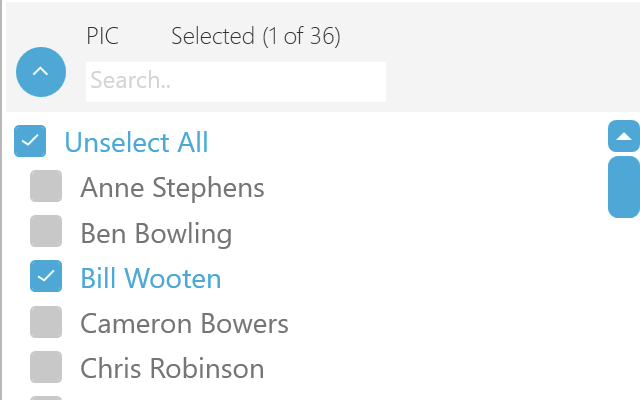
- PIC (Principal in Charge)
- Supervisor
The filter pane is common to all tabs in Visual Planning applications, except for places such as Billing Projection in the Manage tab.
Using the filter pane
You primarily interact with the filter pane through these features:
- Collapse/Expand filters — Click the small drop-down arrows to collapse or expand the filter sections.
- Clear — Click the small Clear button at the top of the pane to reset all of the filters to the defaults.
- Apply — Click the small Apply button at the top of the pane to apply all of the filters you have chosens.
Easy Filter Example
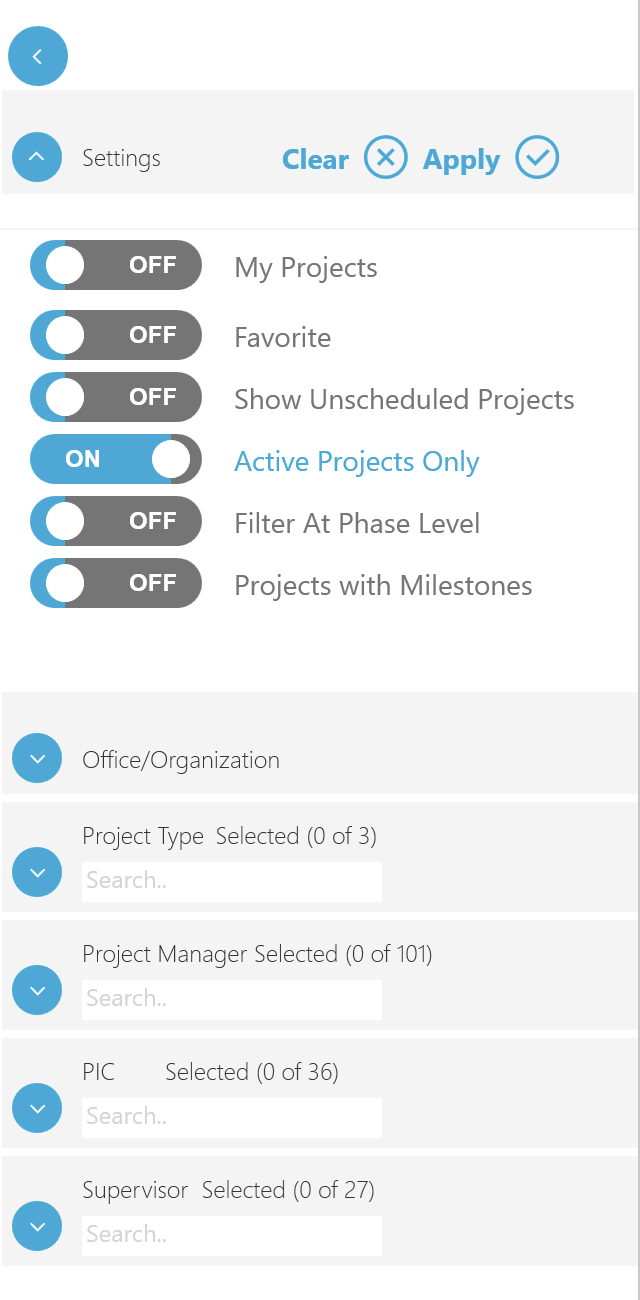
Before explaining each filter section, consider an easy example. To filter by Project Manager:
- Click the small drop-down arrow for Project Manager, check the box for one or more project managers whose projects you want to review.
- At the top of the filter pane, click the Apply button.
The count of the chosen filter criteria will be shown in the Project Manger section, and only the projects for those project managers will appear in the list.
Of course, you can use the search field to further reduce the size of the projects list. When you've found the project you want to review, simply click on it.
Filter sections
Settings
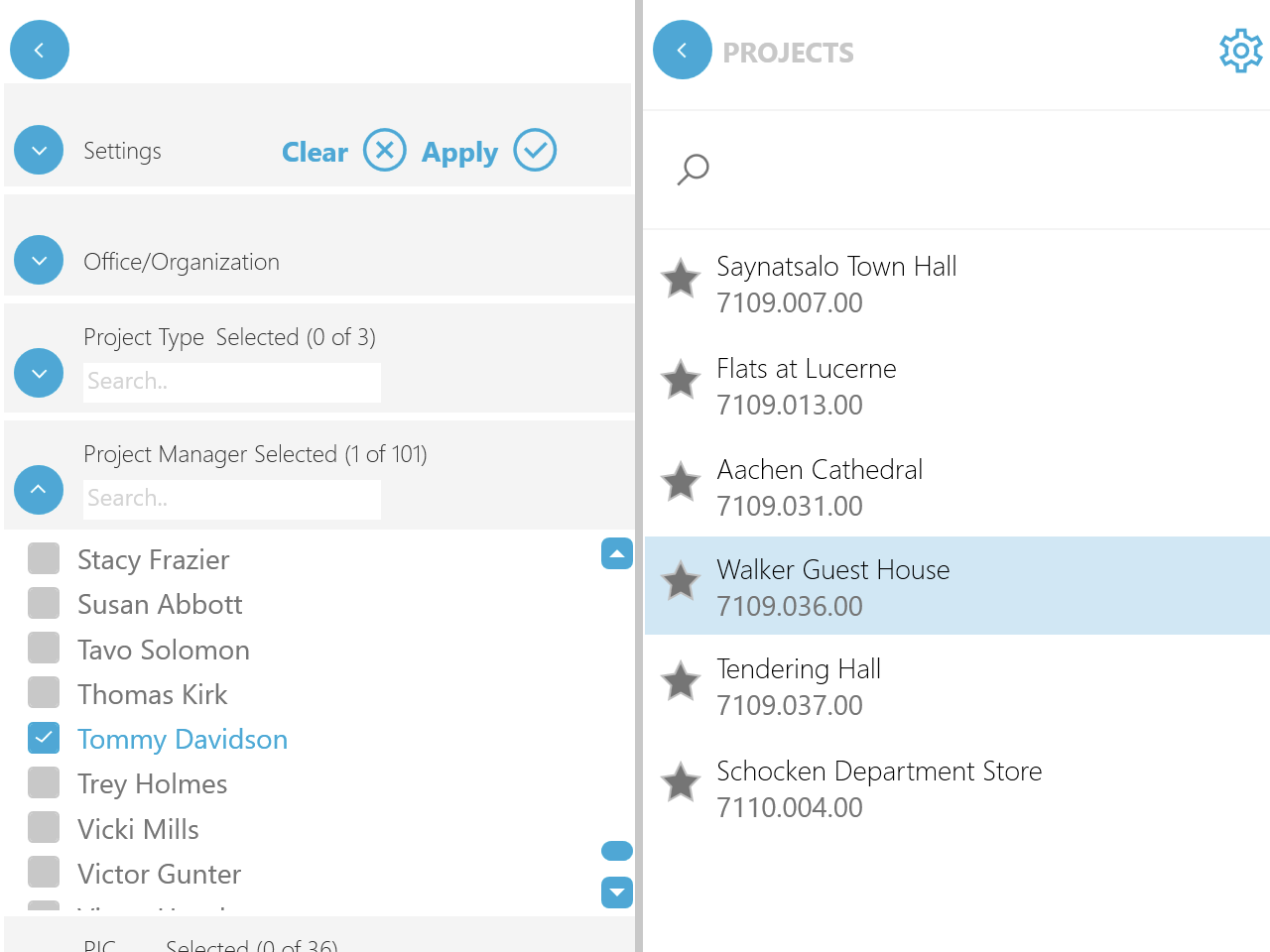
You can changes these toggles in the Settings section. Click the small drop-down arrow for Settings, then click one or more of the toggles—either ON or OFF. After making your choices, click the Apply button to see the effects of your filter choices in the project list.
- My Projects — Toggle this ON to only show your projects as a Principal or Project Manager. This is switched off by default, which permits display of all the projects in the system.
- Favorite — Toggle this ON to display only favorite projects will appear in the project list.
- Show Unscheduled Projects — Toggle this ON to also display projects that don't yet have a scheduled.
- Active Projects Only — This toggle is ON by default, and filters for active projects or opportunities only. If this toggle is OFF, you can also search for inactive projects as well.
- Filter At Phase Level — Toggle this ON to display project phases in the list.
- Projects with Milestones — Toggle this ON to display only projects that have milestones.
Office/Organization
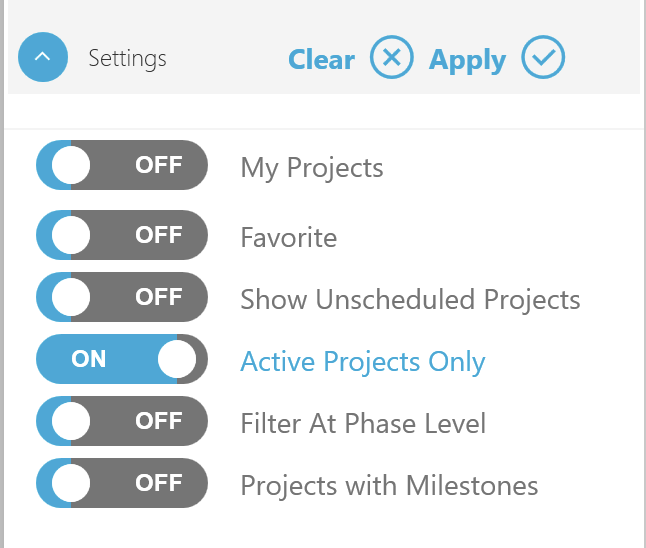
Click the small drop-down arrow for Office/Organization. Click the small drop-down arrows to expand the categories, and then check the boxes for one or more of the categories or individual items. After making your choices, click the Apply button to see the effects of your filter choices in the project list.
Project Types
Click the small drop-down arrow for Project Types. Click the small drop-down arrows to expand any categories you may find there, and then check the boxes for one or more of the project types. After making your choices, click the Apply button to see the effects of your filter choices in the project list.
Project Manager
Click the small drop-down arrow for Project Manager. Check the boxes for each of the project managers whose projects you want to review. After making your choices, click the Apply button to see the effects of your filter choices in the project list.
PIC (Person in charge)
Click the small drop-down arrow for PIC (Person in Charge). Check the boxes for each of the PICs whose projects you want to review. After making your choices, click the Apply button to see the effects of your filter choices in the project list.
Supervisor
Click the small drop-down arrow for Supervisor. Check the boxes for each of the supervisors whose projects you want to review. After making your choices, click the Apply button to see the effects of your filter choices in the project list.